
Bluehost for Beginners 2026: Is It Easy to Use?
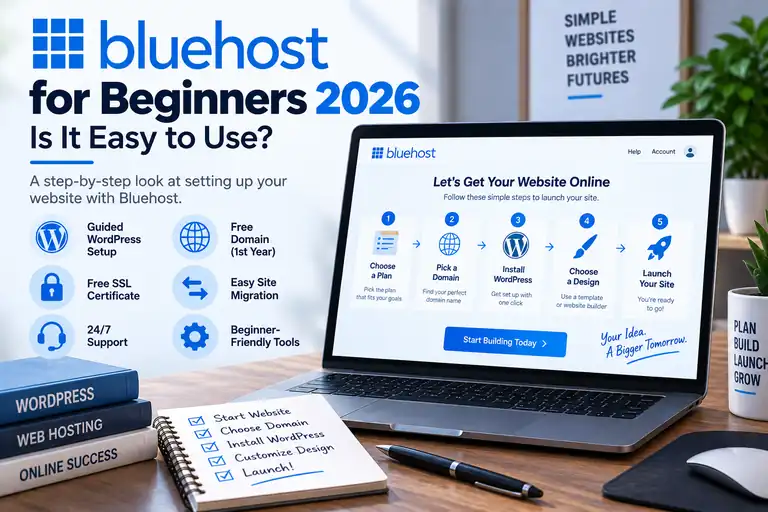
Bluehost is frequently recommended to first-time website owners, but how easy is it if you've never purchased hosting, connected a domain or installed WordPress before?
Quick Answer: Bluehost is one of our top choices for beginners and first-time WordPress website owners. Its guided setup, WordPress-focused dashboard and website-management tools simplify many of the technical steps involved in launching a first site. There is still a learning curve, but beginners generally don't need previous web hosting experience to get started.
In this Bluehost for beginners guide for 2026, we'll walk through the process from signup to launching a website, including WordPress setup, website-building tools, domain management and Bluehost's hosting dashboard.
We'll also explain what Bluehost makes easier, what you'll still need to learn and where first-time website owners can run into confusion.
Hosting features, promotional pricing and renewal rates can change. Verify current plan details before purchasing.
Is Bluehost Good for Beginners?
Yes. Bluehost is one of our top hosting choices for beginners, especially if you're creating your first WordPress website.
The biggest advantage isn't that Bluehost eliminates everything you'll need to learn. Instead, it simplifies many of the hosting tasks that can confuse first-time website owners, including installing WordPress, connecting a domain, enabling SSL and managing your website.
You don't need to understand servers, databases, DNS records or cPanel before signing up. Those tools are available when you need them, but most beginners can start building a website without using the more technical parts of the hosting account.
What Makes Bluehost Beginner-Friendly?
For someone who has never owned a website, Bluehost does several things particularly well:
- Guided website and WordPress setup
- WordPress-focused website management
- Free domain for the first year on eligible plans
- Free SSL
- Managed WordPress updates
- Built-in website and domain management
- WordPress staging
- Website migration tools
- 24/7 chat support
- Phone support on qualifying plans
The important advantage for a beginner is that these tools are available from the same hosting account. You don't have to assemble your domain, hosting, SSL and WordPress installation from several different companies just to launch your first site.
How Hard Is It to Set Up Bluehost?
Bluehost's initial setup is relatively straightforward for a first-time website owner.
After choosing a hosting plan and creating your account, Bluehost guides you through setting up your website. If you're using WordPress, much of the initial installation process is handled for you rather than requiring you to manually create databases, upload WordPress files or configure the installation yourself.
That's an important distinction for beginners. Installing WordPress manually isn't necessarily difficult once you understand web hosting, but there's little reason a first-time website owner should have to learn that process before creating a site.
What Does a Beginner Need Before Signing Up?
You don't need much technical knowledge before starting, but it helps to have a few basic decisions made.
Before purchasing hosting, we'd recommend knowing:
- What type of website you're building
- The domain name you'd like to use
- Whether you plan to use WordPress
- Whether you're creating one website or several
- Your approximate hosting budget
You do not need to know how to code, configure a server or build a database.
Setting Up Your Domain With Bluehost
A domain is the address visitors use to reach your website, such as example.com.
Eligible Bluehost hosting plans include a free domain for the first year, which can simplify the setup process for a new website owner because the domain and hosting can be managed from the same account.
If you already own a domain somewhere else, you can use that domain with Bluehost instead.
One thing beginners should understand is that a free first-year domain isn't permanently free. The domain will have a renewal cost after the included period.
Installing WordPress on Bluehost
WordPress is where Bluehost becomes particularly attractive for beginners.
Instead of requiring you to download WordPress, upload files to a server, create a database and connect everything manually, Bluehost provides a guided WordPress setup process.
Once WordPress is installed, you'll primarily work in two different places:
- Bluehost: hosting, domains, website management, security and account-related tools
- WordPress: pages, posts, themes, plugins, menus and most of the content visitors see
Understanding that distinction makes the process much easier. You won't spend all your time inside Bluehost after launching the site. Most day-to-day website work happens inside WordPress.
For a deeper look at Bluehost's WordPress offering, see our Bluehost WordPress Hosting Review 2026.
Is Bluehost Easy to Use After WordPress Is Installed?
Yes, although there is still a learning curve.
Bluehost simplifies the hosting side, but you'll still need to learn how WordPress itself works.
For example, a new WordPress user will eventually need to understand:
- Pages versus posts
- Themes
- Plugins
- Navigation menus
- Image optimization
- WordPress updates
- Backups
- Basic website security
Those aren't Bluehost-specific problems. They're part of learning how to operate a WordPress website regardless of which hosting company you choose.
This is why we consider Bluehost beginner-friendly rather than completely effortless.
Bluehost Dashboard for Beginners
One of Bluehost's biggest advantages for beginners is that its main interface focuses on websites rather than forcing new users directly into traditional server-management tools.
From the Bluehost account, you can manage important hosting functions such as your websites, domains and account settings without needing to understand every technical component behind them.
More advanced hosting controls are available when needed, but a beginner doesn't have to learn all of them on day one.
For most first-time website owners, that's preferable to being presented with dozens of unfamiliar hosting tools immediately after signing up.
Does Bluehost Use cPanel?
Bluehost's primary website-management experience uses its own Bluehost Portal, while cPanel access is available on applicable hosting products.
For a beginner, this can be a good combination.
You can use Bluehost's simplified interface for common website tasks while still having access to more traditional hosting controls when you eventually need them.
If cPanel itself is one of your main priorities, GreenGeeks is another host worth considering because it provides a more traditional cPanel-focused hosting environment.
Bluehost Website Builder for Beginners
Beginners sometimes assume they need to know HTML or CSS before they can create a website. That's no longer the case for most WordPress sites.
WordPress supports visual editing and a huge ecosystem of themes and page-building tools. Bluehost's WordPress-focused setup helps get you to the point where you can begin designing the site without manually building its underlying hosting environment.
That doesn't mean the website will design itself. You'll still need to choose your layout, create pages, add content and customize the site's appearance.
But you do not need to be a programmer to build a basic website on Bluehost.
Which Bluehost Plan Is Best for Beginners?
For a typical new website, blog or small business site, Starter is the first Bluehost plan we'd consider.
There's usually no reason for a beginner to automatically purchase the most expensive hosting plan. Start by looking at how many websites you plan to host, how much storage you need and whether you need any of the additional features included with the higher tiers.
If your project outgrows an entry-level plan, you can evaluate an upgrade later.
Bluehost uses introductory pricing, so beginners should pay attention to both the promotional price and the eventual renewal rate rather than choosing a plan based solely on the advertised monthly number.
We've broken those costs down separately in our Bluehost Pricing 2026 guide.
What Beginners Should Know About Bluehost Pricing
One of the easiest mistakes for a first-time hosting customer to make is assuming the promotional monthly price is what the account will cost forever.
It isn't.
Bluehost, like many hosting companies, offers introductory pricing for the initial hosting term. The account then renews at the applicable standard renewal price.
Before purchasing, check:
- The total amount charged for the initial term
- How long the initial term lasts
- The hosting renewal price
- The domain renewal price after any included period
- Any optional products selected during checkout
We don't consider introductory pricing a reason to avoid Bluehost, but beginners should understand the renewal cost before buying.
Does Bluehost Include SSL?
Yes. Bluehost includes free SSL with its current web hosting plans.
SSL enables HTTPS and encrypts information transmitted between your website and a visitor's browser.
For a beginner, the important point is that you generally don't need to go shopping for a separate basic SSL certificate before launching an ordinary website using Bluehost's included SSL.
Does Bluehost Back Up Your Website?
Backup functionality varies by Bluehost plan. The Starter plan includes weekly website backups, while higher tiers may provide additional backup features.
Beginners should still learn how their backups work rather than assuming the hosting company will always be able to restore everything.
As your website becomes more important, maintaining an independent backup outside the hosting account is a good practice.
Is Bluehost Good for a Small Business Beginner?
Yes. Bluehost can be a particularly good fit for a small-business owner building a first WordPress website.
A local service business, consultant, real estate professional, contractor or other small business often needs a relatively straightforward site with pages describing the business, services, contact information and perhaps a blog.
Those websites generally don't require advanced server administration. Bluehost's beginner-focused WordPress experience allows the business owner to concentrate more on building the site and less on configuring the hosting environment.
Is Bluehost Good for a Beginner Blog?
Yes. A blog is another strong use case for Bluehost.
WordPress began as a blogging platform and remains extremely well suited to publishing articles, organizing categories, managing authors and building content-focused websites.
A beginner can start with a relatively simple site and add functionality later through themes and plugins as the blog grows.
Is Bluehost Good for Someone Who Can't Code?
Yes. You don't need coding experience to create a normal WordPress website with Bluehost.
Most basic website design and content management can be handled through WordPress, themes, blocks and visual website-building tools.
Learning some HTML or CSS can eventually be useful, but it isn't a prerequisite for launching your first site.
Where Can Beginners Get Confused?
Bluehost simplifies web hosting, but there are still several areas where first-time website owners can become confused.
1. Introductory vs Renewal Pricing
The promotional price applies to the initial term. Always look at the renewal price before purchasing.
2. Bluehost vs WordPress
Bluehost hosts the website. WordPress is the software you use to create and manage most of the website itself.
3. Domains vs Hosting
Your domain is your website's address. Hosting is the server space and infrastructure that makes the website available online.
4. Plugins
WordPress plugins add functionality, but beginners often install too many. Use reputable plugins and only install functionality you actually need.
5. Backups
Don't wait until something goes wrong before learning how your website is backed up and restored.
6. Website Security
Bluehost can provide hosting-level security features, but you still need to maintain WordPress, update plugins and themes, and use strong passwords.
Bluehost Pros and Cons for Beginners
| Pros for Beginners | Things to Know |
|---|---|
| Guided WordPress setup | Renewal prices are higher than introductory prices |
| Beginner-focused website management | You'll still need to learn WordPress |
| Free domain for the first year on eligible plans | Domain renewal is a separate future cost |
| Free SSL | Backup features vary by plan |
| WordPress tools and managed updates | Some advanced hosting tools take time to learn |
| 24/7 support | Optional services can increase the total cost |
Bluehost vs GreenGeeks for Beginners
Because Bluehost and GreenGeeks are two of the hosting companies we recommend most strongly, beginners may reasonably consider both.
We give Bluehost the advantage for a complete beginner creating a first WordPress website. Its website-management experience is designed to simplify the initial learning curve.
GreenGeeks is an excellent alternative if you specifically want cPanel, LiteSpeed technology, automatic backups or plan to manage multiple websites.
Neither is a poor choice for a beginner. Bluehost gets our edge for simplicity, while GreenGeeks becomes increasingly attractive as you become more comfortable with traditional hosting tools.
See our Bluehost vs GreenGeeks comparison for the full breakdown.
Who Should Choose Bluehost?
Bluehost is particularly well suited to someone who:
- Is creating a website for the first time
- Wants to use WordPress
- Doesn't have coding experience
- Wants guided website setup
- Prefers a simplified hosting interface
- Is creating a blog or small-business website
- Wants access to support while learning
Who Might Want a Different Host?
Bluehost isn't automatically the best choice for everyone.
You may prefer another host if you:
- Specifically want a traditional cPanel-first experience
- Want LiteSpeed hosting as a priority
- Need advanced server administration
- Need a specialized VPS or dedicated-server environment
- Are primarily choosing a host based on a feature Bluehost doesn't provide on the plan you're considering
For a first website, however, most of those requirements aren't necessary.
Bluehost for Beginners FAQ
Is Bluehost easy to use for beginners?
Yes. Bluehost is one of our preferred hosting choices for beginners because it combines guided setup, WordPress integration and simplified website management. You'll still need to learn how WordPress works, but you don't need previous hosting experience.
Do I need to know how to code to use Bluehost?
No. You can build and manage a typical WordPress website without knowing HTML, CSS, PHP or other programming languages.
Does Bluehost install WordPress for you?
Bluehost provides a guided WordPress setup process that removes the need for beginners to manually create databases, upload WordPress files and perform a traditional manual installation.
Can I build a website on Bluehost without WordPress?
Bluehost supports more than WordPress, but WordPress is one of its strongest options for beginners because of the platform's flexibility and Bluehost's WordPress-focused setup and management tools.
Which Bluehost plan is best for a beginner?
For many new websites and blogs, Starter is the first plan we'd consider. Beginners should compare its website, storage and feature limits with the higher tiers rather than automatically purchasing a more expensive plan.
Is Bluehost good for a small business?
Yes. Bluehost is particularly well suited to a small-business owner creating a first WordPress website who wants straightforward setup and doesn't need advanced server administration.
Is Bluehost good for blogging?
Yes. Bluehost and WordPress are a strong combination for a beginner blog, and the site can expand with additional themes, plugins and functionality as it grows.
Is Bluehost better than GreenGeeks for beginners?
We give Bluehost a slight advantage for complete beginners because of its simplified WordPress-focused onboarding. GreenGeeks is an excellent alternative for users who specifically prefer cPanel, LiteSpeed and a more traditional hosting environment.
Final Verdict: Is Bluehost Good for Beginners?
Yes. Bluehost is one of our top recommendations for someone creating a first website, particularly a first WordPress website.
Its biggest strength is that it reduces the amount of hosting knowledge you need before getting started. WordPress setup, domain management, SSL and the most common website-management functions can be handled without learning server administration first.
There will still be things to learn. You'll need to understand WordPress, themes, plugins, backups and basic website maintenance as your site grows.
But those are skills you'll need with almost any WordPress host.
For a beginner who wants a straightforward path from buying hosting to launching a WordPress website, Bluehost is our first choice.
Affiliate Disclosure: WebHostRanking.com may receive compensation if you purchase Bluehost through links on this page. This does not increase the price you pay. Hosting pricing, features and promotional terms can change, so verify current details before purchasing.