
How to Speed Up Your Website in 2026: 12 Proven Ways
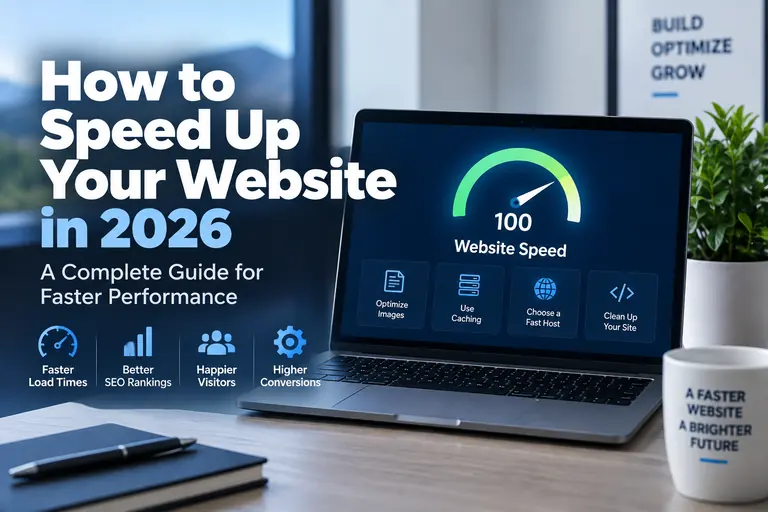
A slow website can frustrate visitors, hurt conversions and make even a well-designed site feel unreliable. The good news is that you usually do not need to rebuild your entire website to make it faster.
In this guide, we'll walk through 12 practical ways to speed up your website in 2026, including better hosting, image optimization, caching, CDN usage, database cleanup and several WordPress-specific improvements.
If your current host is the main bottleneck, optimization can only take you so far. Our guide to choosing a web host explains what to compare before moving your site.
Bluehost vs GreenGeeks is a close comparison between two beginner-friendly web hosts, but they appeal to slightly different users.
Bluehost is a strong choice for beginners who want an easy path into WordPress, while GreenGeeks stands out for its cPanel-based hosting, generous resources and environmentally focused hosting platform.
Our pick: GreenGeeks for overall shared hosting value. Bluehost remains an excellent option for beginners and users who want a simple WordPress-focused setup.
ers for WordPress users, beginners and small businesses. Its hosting platform combines an easy WordPress setup process with free SSL, website migration tools, managed WordPress updates and built-in performance features.
Through our current Bluehost promotional link, new customers can get the Starter plan for just $1.99 per month for one website during the introductory term. That makes Bluehost one of the most affordable ways to launch a new WordPress website right now.
Our Rating: 4.7/5 — A top choice for beginners and WordPress users, especially with the current $1.99/month Starter promotional offer available through our link.
Get Bluehost for $1.99/Month →
Promotional introductory offer for one website. Price and terms may change. We may earn a commission if you purchase through this link.
Website speed is influenced by much more than the hosting company you choose. Images, plugins, themes, caching, databases, scripts and even the physical location of your server can affect how quickly a page appears for a visitor.
That means improving website performance usually requires looking at the entire delivery process rather than searching for one magic setting.
The best place to start is identifying the biggest bottleneck and fixing the problems that will make the largest difference.
1. Start With Better Web Hosting
Your hosting server is the foundation of your website's performance.
You can optimize images, remove plugins and configure caching perfectly, but a slow or overloaded hosting environment can still limit how quickly your website responds.
Shared hosting is sufficient for many smaller websites, but quality varies considerably between providers. Growing websites may eventually benefit from more powerful WordPress hosting, cloud infrastructure or a VPS.
If you are starting with inexpensive hosting, compare our Best Cheap Web Hosting 2026 recommendations rather than choosing a provider based solely on the lowest advertised price.
Sites that have clearly outgrown shared hosting should also consider our Best VPS Hosting 2026 guide.
2. Optimize Your Images
Large images are one of the most common reasons web pages become unnecessarily heavy.
A photograph uploaded directly from a modern phone or camera can be several megabytes even though the website may display it at only a fraction of its original dimensions.
Before uploading images, resize them close to the dimensions at which they will actually appear.
Modern formats such as WebP can also substantially reduce image file sizes while maintaining good visual quality.
Good Image Optimization Practices
- Resize images before uploading them
- Use WebP or another efficient modern format when appropriate
- Compress images
- Avoid uploading huge source photographs unnecessarily
- Use responsive images
- Lazy-load images below the initial viewport
- Avoid using an image when CSS or text can accomplish the same result
The objective is not to make every image look heavily compressed. It is to find a reasonable balance between visual quality and download size.
3. Enable Page Caching
WordPress normally builds pages dynamically using PHP and database queries.
Caching can store a prepared version of a page so the server does not have to repeat all of that work for every visitor.
This can dramatically reduce server processing for pages that do not need to be generated from scratch on every request.
Many quality WordPress hosts now provide caching at the hosting or server level.
For example, GreenGeeks uses LiteSpeed technology with LSCache compatibility, while SiteGround provides its own server-level caching system.
Our GreenGeeks Review covers its hosting platform in more detail.
4. Use a Content Delivery Network
A content delivery network, or CDN, distributes copies of static website content across servers in different geographic locations.
When someone visits your website, supported files can be delivered from a CDN location closer to that visitor rather than traveling all the way from your origin server.
A CDN can be particularly useful when your visitors are spread across different states, countries or continents.
CDNs can also reduce some of the bandwidth and request load placed directly on your hosting server.
5. Remove Plugins You Don't Need
WordPress plugins are not automatically bad for performance. A well-built site can use numerous plugins and remain fast.
The problem is unnecessary or poorly optimized plugins.
Plugins can add:
- Database queries
- JavaScript
- CSS files
- External requests
- Background processes
- Scheduled tasks
Review your WordPress plugins periodically and remove plugins that no longer serve a useful purpose.
Do not simply deactivate unused plugins indefinitely. If you know you will not use one again, deleting it keeps the installation cleaner.
6. Use a Lightweight WordPress Theme
Your WordPress theme affects much more than your site's appearance.
A theme can introduce CSS, JavaScript, fonts, animations, layout frameworks and other resources that browsers must download and process.
Choose a theme that provides the features you actually need without loading large amounts of unnecessary code on every page.
Page builders can still produce fast websites, but they need to be configured carefully. Avoid adding visual effects simply because they are available.
7. Keep WordPress, Themes and Plugins Updated
Updates are primarily associated with security and new features, but developers also regularly improve compatibility and performance.
Running outdated WordPress software can leave your site with old code, bugs and security vulnerabilities.
Before performing major updates, make sure you have a current backup.
A staging environment is even better because it lets you test significant changes without immediately affecting the live website.
Managed hosting can simplify these tasks. Our Best Managed WordPress Hosting 2026 guide compares hosts that provide more WordPress maintenance and management tools.
8. Clean Up Your WordPress Database
WordPress stores posts, pages, comments, settings, revisions, plugin information and other content in its database.
Over time, unnecessary data can accumulate.
Examples can include:
- Old post revisions
- Expired transients
- Spam comments
- Deleted comments
- Data left behind by old plugins
Database optimization can help keep a mature WordPress installation manageable, although it should be approached carefully.
Always create a complete backup before manually modifying or optimizing your WordPress database.
9. Reduce Unnecessary JavaScript and CSS
Modern websites frequently load stylesheets and scripts from themes, plugins, analytics platforms, advertising services and third-party tools.
Each resource can add additional download and processing work.
Removing unnecessary scripts is generally better than trying to optimize code you do not actually need.
Performance plugins and hosting platforms may also provide tools for minification, deferred JavaScript or other front-end optimizations.
Test these settings carefully. Aggressive optimization can occasionally break menus, forms, sliders and other interactive website elements.
10. Limit Third-Party Scripts
Not everything slowing down your website necessarily comes from your own server.
Third-party services can add substantial loading time.
Examples include:
- Advertising networks
- Analytics platforms
- Live chat widgets
- Tracking scripts
- Social media embeds
- Video embeds
- External fonts
- Marketing tools
That does not mean you need to remove every third-party service. Many provide valuable functionality.
The key is deciding whether each script provides enough value to justify its performance cost.
11. Choose a Server Location Near Your Audience
Physical distance still matters on the internet.
Data traveling between a server and a visitor takes time, even on extremely fast networks.
If most of your customers are in the United States, hosting your website on a U.S. server generally makes more sense than choosing a distant data center without a specific reason.
A CDN can reduce the effect of geographic distance for many static resources, but choosing an appropriate origin server location is still useful.
12. Test Your Website Performance Regularly
Website optimization is not a one-time project.
You can optimize a site today and gradually make it slower over the next year by adding larger images, plugins, tracking scripts and new functionality.
Regular performance testing makes it easier to catch problems before they become severe.
Useful testing tools include Google's PageSpeed Insights and Chrome DevTools.
Do not focus exclusively on achieving a perfect performance score. Use testing tools to identify real bottlenecks and improve the experience of actual visitors.
What Is a Good Website Load Time?
There is no single load-time number that perfectly describes every website because pages and user connections vary significantly.
A simple landing page and a complex WooCommerce product page do not perform the same work.
Instead of chasing one universal number, focus on delivering important page content quickly and keeping the page responsive while it loads.
Google's Core Web Vitals are particularly useful because they evaluate aspects of the real user experience such as loading, responsiveness and visual stability.
Does Faster Hosting Make a Website Faster?
Yes, when hosting is the bottleneck.
A faster server can reduce the time required to process PHP, query databases and begin delivering a page.
However, upgrading hosting will not automatically fix a 10 MB hero image, dozens of unnecessary scripts or a poorly optimized WordPress installation.
The best results usually come from combining quality hosting with efficient website design and configuration.
When Should You Upgrade Your Hosting?
Consider upgrading when your hosting environment is consistently limiting performance despite reasonable website optimization.
Signs can include:
- Frequent resource-limit warnings
- Slow server response during busy periods
- CPU or memory limits being reached regularly
- A growing WooCommerce store
- Increasing traffic
- More complex database activity
- Multiple busy websites on one account
Before upgrading, make sure the website itself is reasonably optimized. Moving inefficient code to a more expensive server can hide the problem rather than solve it.
Website Speed and WooCommerce
Performance becomes particularly important for eCommerce because customers interact with product pages, carts, account pages and checkout systems.
WooCommerce also performs more dynamic database work than a simple informational website, which can make hosting resources increasingly important as a store grows.
Bluehost currently offers purpose-built WooCommerce hosting with WooCommerce preconfigured, NVMe storage, caching, SSL and additional store tools, while InMotion offers WooCommerce environments ranging from smaller stores through isolated VPS-based resources for heavier traffic.
If you plan to build an online store, choosing hosting specifically suited to WooCommerce can save you from having to migrate immediately after the business starts growing.
Our Website Speed Checklist
| Optimization | Priority | What to Check |
|---|---|---|
| Hosting | High | Server response and resource limits |
| Images | High | Dimensions, compression and format |
| Caching | High | Page and server-level caching |
| Plugins | Medium | Remove unnecessary plugins |
| Scripts | Medium | Third-party JavaScript and tracking |
| Database | Medium | Unnecessary accumulated data |
| CDN | Depends on Audience | Geographic distribution of visitors |
Final Thoughts
Making a website faster does not require changing everything at once.
Start with the largest bottlenecks: hosting, oversized images and caching. Then review plugins, scripts, database overhead and other resources that may be slowing the site down.
If your hosting is already struggling to keep up with your website, optimization alone may not be enough.
Our How to Choose a Web Host guide explains the most important hosting factors to compare, while our Best WordPress Hosting 2026 guide covers our top choices for WordPress websites.