
How to Migrate a WordPress Site to Bluehost in 2026
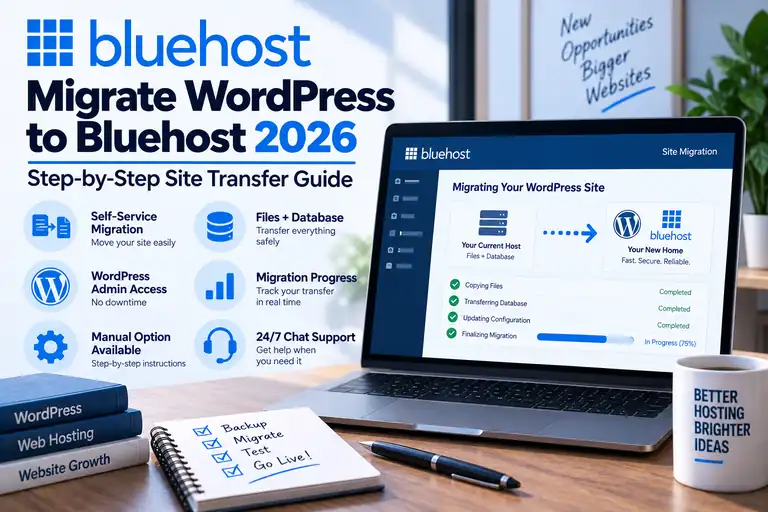
Moving an existing WordPress website to a new host sounds intimidating because your site includes more than just pages and images. Its files, database, plugins, themes and settings all need to arrive intact.
Fortunately, Bluehost now provides a self-service WordPress migration tool designed to transfer an existing WordPress site from another hosting provider.
In this guide, we'll walk through how to migrate WordPress to Bluehost, what to do before starting the transfer and what you should check before directing visitors to the new hosting account.
Changing web hosts doesn't mean you need to rebuild your WordPress website from scratch.
A WordPress migration transfers the existing site's files, database and content into the new hosting environment.
Bluehost currently offers a self-service migration system powered by InstaWP that is designed to simplify that process.
There is also a manual migration method for users who want more control or have a site that can't be moved using the automated workflow.
Before moving, you may want to read our Bluehost WordPress Hosting Review 2026 to make sure Bluehost is the right destination for your site.
What Gets Moved During a WordPress Migration?
A complete WordPress website consists of two major components:
- Website files — WordPress itself, themes, plugins, uploaded images and other files.
- Database — posts, pages, users, settings, comments and much of the site's configuration.
Both components need to be transferred for the migrated site to operate like the original.
Bluehost says its current self-service migration process transfers the website's files, database and content from the existing host into Bluehost.
Before You Migrate: Back Up Your Website
Before changing anything, create a current backup of your existing website.
Even when you're using an automated migration tool, you don't want the migration itself to be your only copy of the site.
Your backup should ideally contain:
- WordPress files
- Uploads and images
- Themes
- Plugins
- WordPress database
Keep that backup somewhere outside both hosting accounts until the migration is finished and thoroughly tested.
Our How to Back Up Your Website guide covers the process in more detail.
Step 1: Set Up Your Bluehost Hosting
You need a Bluehost hosting account before you can transfer the site into it.
For a normal WordPress site, Bluehost's WordPress hosting is the most straightforward starting point.
If you're unsure which plan you need, compare the current plan costs and renewal rates in our Bluehost Pricing 2026 guide.
Step 2: Open the Websites Section
After the Bluehost account is ready, log in to the Bluehost Portal.
Bluehost's current migration workflow starts from the Websites area of the account.
You can migrate an existing WordPress site directly or begin by creating a new WordPress installation and then importing the existing site.
Step 3: Start the WordPress Migration
Bluehost's current self-service migration tool uses a Bluehost-branded migration plugin powered by InstaWP.
The tool is designed to connect the existing WordPress site to the Bluehost account and handle the transfer without requiring you to manually download and upload the entire website.
When creating a new WordPress installation first, Bluehost currently provides an Import an Existing WordPress Site option once the installation is complete.
Step 4: Connect Your Existing WordPress Site
The migration process needs access to the existing website so that it can transfer the site's data.
You'll need administrator access to the WordPress website you're moving.
Follow the Bluehost migration prompts to connect and authorize the existing WordPress installation.
Once connected, the migration system can begin transferring the site to Bluehost.
Step 5: Let Bluehost Transfer the Site
The migration tool transfers the website components into the Bluehost hosting environment.
How long the transfer takes depends on factors such as:
- Website size
- Number of files
- Size of the WordPress database
- Current server performance
- Network conditions
- Complexity of the site
A large WooCommerce site with thousands of images will naturally take longer than a small five-page business website.
Avoid making major changes to the original site while an active migration is underway.
Step 6: Don't Cancel Your Old Hosting Yet
This is one of the most important migration rules.
Do not immediately cancel your old hosting account just because the migration reports that it has completed.
Your original website is your safety net until you've verified that the Bluehost copy works correctly.
Keep the old site online while you test the migrated version.
Step 7: Test the Migrated Website
Don't limit your test to opening the homepage.
Check the actual functionality of the website.
We recommend testing:
- Homepage
- Important pages
- Blog posts
- Images
- Navigation menus
- Contact forms
- Internal links
- Plugins
- WordPress administrator access
- Mobile layout
- SSL/HTTPS
If it's a WooCommerce store, also inspect products, customer-account functionality, cart and checkout configuration before treating the migration as finished.
Step 8: Check Your WordPress Permalinks
If pages return unexpected 404 errors after a manual migration, WordPress permalinks are one place to check.
Bluehost's manual migration instructions currently recommend opening:
WordPress Dashboard → Settings → Permalinks
and saving the permalink settings again after the transfer.
This refreshes WordPress's URL structure.
Step 9: Check Your SSL Certificate
Make sure the migrated website loads over HTTPS.
Test both the homepage and several internal pages.
Also watch for mixed-content warnings, which can occur when a page loads over HTTPS but still references resources through old HTTP URLs.
Website security shouldn't end with SSL. See our How to Secure Your Website guide for the other steps we recommend.
Step 10: Point Your Domain to Bluehost
Once you're satisfied that the Bluehost copy is functioning correctly, the domain needs to direct visitors to the new hosting environment.
The exact process depends on where your domain is registered and how its DNS is currently configured.
If the domain is registered somewhere other than Bluehost, you may need to update the appropriate DNS or nameserver settings with that provider.
DNS changes can take time to propagate, so the change isn't always visible everywhere immediately.
Step 11: Test Everything Again
After the domain is pointing to Bluehost, run another complete test.
This time, verify that you're actually viewing the site from the Bluehost environment rather than the old server.
Test forms and other interactive features again because some problems only become apparent after DNS and the final domain configuration are in place.
Step 12: Keep Your Old Hosting Temporarily
There is no prize for canceling the old hosting account five minutes after switching DNS.
Keep it available until you're confident that:
- The domain resolves correctly.
- The entire website works.
- Important forms work.
- SSL works.
- Email isn't affected.
- All important content migrated.
- You have a current independent backup.
Once everything has been verified, you can deal with canceling the old hosting account according to that provider's billing terms.
Can You Migrate WordPress to Bluehost Manually?
Yes.
Bluehost continues to document a complete manual WordPress migration process.
The manual method generally involves:
- Downloading the website files from the old server using FTP.
- Exporting the WordPress database.
- Uploading the website files to Bluehost.
- Creating a new database.
- Importing the old database.
- Updating wp-config.php with the new database credentials.
- Refreshing the WordPress permalink settings.
- Testing the migrated site.
This method gives experienced users greater control, but it also creates more opportunities for configuration mistakes.
For most ordinary WordPress users, we'd try Bluehost's self-service migration tool before doing the entire migration manually.
What About Moving From WordPress.com?
A WordPress.com site requires a somewhat different process.
Bluehost currently documents exporting the content from WordPress.com and importing that exported content into a WordPress installation on Bluehost.
Bluehost's current WordPress.com instructions start by using Tools → Export from the WordPress.com dashboard and then importing the resulting file into WordPress on Bluehost.
This shouldn't be confused with migrating a self-hosted WordPress.org site from another hosting provider.
Will Migrating to Bluehost Hurt SEO?
A hosting migration does not inherently require changing your domain name or page URLs.
If the same domain and URL structure remain intact, search engines and visitors should continue requesting the same addresses after DNS points to the new server.
Problems are more likely when a migration accidentally changes URLs, removes content, produces errors or creates significant downtime.
That's another reason to test the migrated site thoroughly before shutting down the old environment.
Can You Migrate Without Downtime?
The safest strategy is to keep the existing website operating while you prepare and test the Bluehost copy.
You then update the domain configuration only after the destination site is ready.
This approach reduces the need to take the public website offline simply to move the underlying hosting.
What Can Go Wrong During a WordPress Migration?
Common migration problems can include:
- Missing images
- Database connection errors
- Broken internal URLs
- Plugin conflicts
- PHP version differences
- Missing files
- Incorrect DNS
- SSL issues
- 404 errors
- Email configuration problems
Bluehost notes that differences between PHP versions on the source and destination can require additional review because some plugins, themes or functionality may behave differently after migration. :contentReference[oaicite:1]{index=1}
Bluehost Migration vs Starting Over
If you already have a functioning WordPress site, migration usually makes much more sense than rebuilding everything.
A migration preserves the existing content and website structure rather than requiring you to manually recreate every page, post and media item.
Starting over may make sense when the existing site is obsolete and you're intentionally planning a complete redesign, but that's a website-development decision rather than a hosting requirement.
Is Bluehost Easy After the Migration?
For normal WordPress management, Bluehost is designed to keep many common hosting tasks inside its Portal rather than requiring new users to administer a server directly.
That's one of the reasons we consider it particularly relevant to newer website owners.
Our Bluehost for Beginners 2026 guide walks through what the platform is like once your site is actually there.
Should You Migrate Your WordPress Site to Bluehost?
If Bluehost fits your hosting requirements and pricing expectations, its current self-service migration tool makes moving an existing WordPress site considerably more approachable than performing a complete manual migration.
The process is especially useful for people who already have a WordPress site but don't want to manually move files and databases themselves.
Our main advice is simple: back up first, migrate second, test thoroughly, and only then switch the domain and retire the old hosting account.
That sequence gives you a fallback if something doesn't transfer correctly.
Bluehost's migration tools, hosting features and promotions can change. Check Bluehost's current migration documentation and hosting terms before beginning a transfer.